

PunctuationToApostrophe
Flips apostrophes the right way
An apostrophe facing the wrong way? This month’s macro can help. Want to learn how to use macros? Join my upcoming two-part beginner workshop through the Institute of Professional Editors that gives you hands-on experience installing and using them—see the details below.
This Month’s Macro – PunctuationToApostrophe
When an author types an apostrophe at the beginning of a number or word, Word’s Smart Quotes function automatically formats it incorrectly—as an open quote mark instead of an apostrophe, such as ‘80s, ‘til, or ‘cause.
How do you fix an apostrophe that’s facing the wrong way? I usually place my cursor after the incorrectly facing apostrophe, type a new apostrophe (which Word will automatically insert in the correct direction), and delete the original. That’s a lot of steps. PunctuationToApostrophe condenses all that work into one step: running the keyboard shortcut to launch the macro. It performs other apostrophe-related edits too.
For apostrophes at the start of a word or number, PunctuationToApostrophe will:
Replace a wrong-facing apostrophe with a correct one
Insert a missing apostrophe
Convert a straight apostrophe into a curly apostrophe
Replace a mistakenly typed double quote with an apostrophe
How It Works
To fix a wrong-facing apostrophe, straight apostrophe, or double quote at the start of a word or number:
Place the cursor anywhere to the left of the mark
Run PunctuationToApostrophe
The macro automatically finds and fixes the next apostrophe error to the right
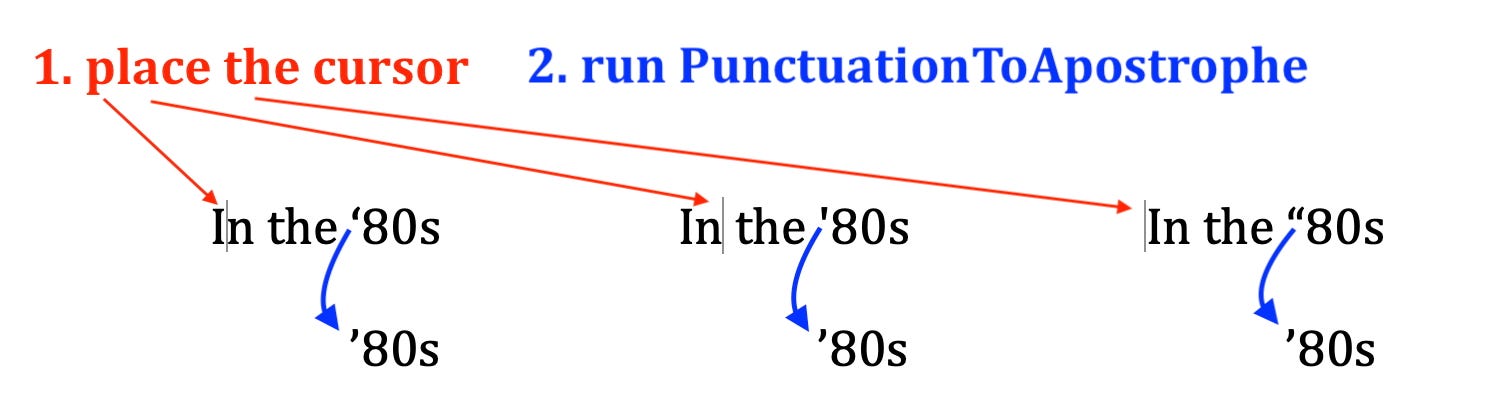
You don’t need to position your cursor precisely—place it anywhere to the left of the error. PunctuationToApostrophe finds and fixes the next apostrophe problem automatically.
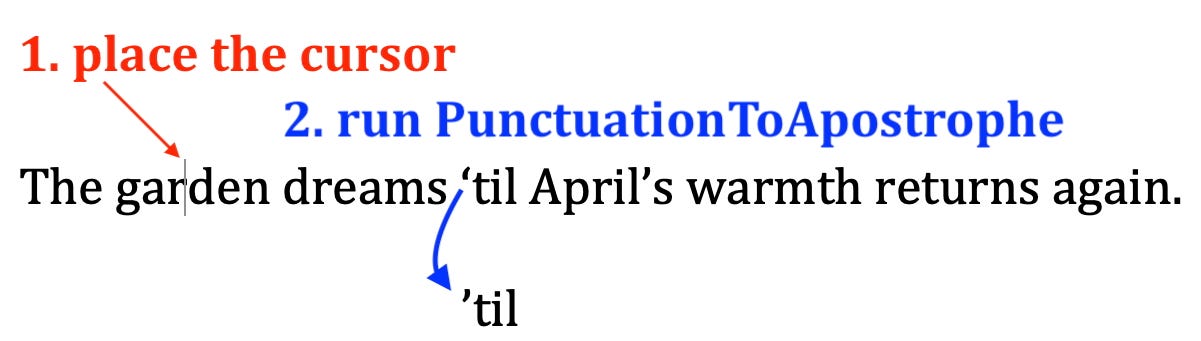
PunctuationToApostrophe works the same way with words: Simply place your cursor to the left of the error before you run the macro.
To insert an apostrophe in front of a word or number:
Place the cursor anywhere inside the word or number
Run PunctuationToApostrophe
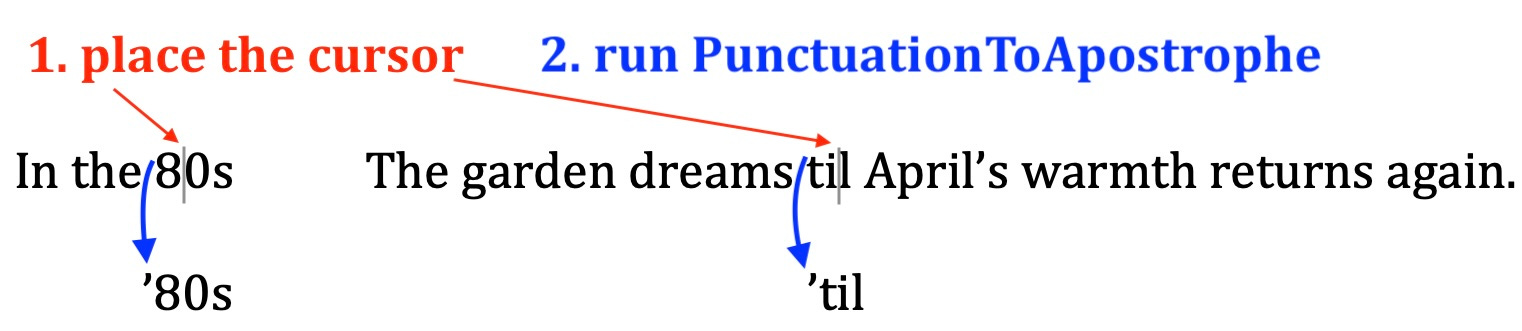
Unlike when fixing a wrong-facing apostrophe, inserting a missing apostrophe requires placing the cursor inside the word or number where you want it to appear. The apostrophe will be inserted at the beginning of the word or number.
Note that the macro is not designed to insert an apostrophe inside a word, such as Aprils —> April’s.
Need a suggestion for a shortcut?
Mac: Ctrl+Option+’
PC: Ctrl+Alt+’
Download the Code
Upcoming Beginner Macro Training
The most effective way to learn how to edit using macros is through hands-on training that gives you experience installing and working with them. Join Paul Beverley and me for a series of two 2-hour online workshops for beginners through the Institute for Professional Editors in Australia: Beginner Macros: Speed Up Repetitive Editing Tasks. There are separate workshops for Mac and PC users:
PC: October 30 and November 13, 2025, 9:30 a.m. – 11:30 a.m. AEDT. Register here.
Mac: November 6 and 20, 2025, 9:30 a.m. – 11:30 a.m. AEDT. Register here.
Please note: The days and times listed are in Australian Eastern Daylight Time (AEDT). For those in the UK and US, they take place the day before: October 29 and November 12, 5, and 19. In the UK, the trainings begin at 10:30 p.m., and in the US, they start at 5:30 p.m. ET, except for October 29, which begins at 6:30 p.m. ET. Convert to your time zone here to check if the trainings work for your schedule. You must attend live—the sessions will not be recorded.
Have a question or want to suggest a macro for a future newsletter—or just want to say hi? Reply to this email.
Happy macroing,
Jennifer
ps: Have you backed up your macros and keyboard shortcuts recently?